
-
AuthorSearch Results
-
February 5, 2025 at 12:58 pm #3760
Topic: Woocommerce Related Products by Category
in forum WordPress/WooCommerce ChristopherParticipant
How to Show WooCommerce Related Products by Category using WooCommerce Upsell Order Bump Plugin?
January 30, 2025 at 1:46 pm #3744In reply to: Set Related Products Woocommerce?
ChristopherParticipantTo set related products in WooCommerce using the Upsell Order Bump Plugin by WP Swings, you can follow these steps:
Installation of the Plugin
1. Install the Free Version:
– Go to your WordPress dashboard.
– Navigate to Plugins > Add New.
– Search for “Upsell Order Bump Offer for WooCommerce” and click “Install Now”.2. Install the Premium Version** (if applicable):
– Download the premium plugin from your WP Swings account.
– In your WordPress dashboard, go to Plugins > Add New > Upload Plugin.
– Choose the downloaded .zip file and click “Install Now”.
– Activate the plugin after installation.Creating Related Products (Order Bumps)
1. Access Order Bump Settings:
– Navigate to the Upsell Order Bump section in your WordPress dashboard.2. Create a New Order Bump:
– Click on the “Create New Bump” button.
– Fill in details such as the Name of the Order Bump and priority, and set a Minimum Cart Value if needed.3. Select Target Products:
– In the “Select Target Products” section, specify which products should trigger this order bump when added to the cart. You can select individual products or entire categories.4. Configure Offer Settings:
– Choose an offered product that will be displayed as an upsell when customers add a qualifying product to their cart.
– Set pricing options for the offer, including discounts or fixed prices.5. Customize Appearance:
– Select templates and customize the design of your order bump offer to match your store’s branding.6. Set Global Settings:
– In the Global Settings section, enable or disable various functionalities like enabling upsell order bumps across all products or setting specific locations on the checkout page where these offers will appear.7. Save Changes:
– After configuring all settings, make sure to save your changes to activate the order bump offer.Utilizing Smart Features
– Smart Skip: This feature allows you to skip showing the offer if the customer has already purchased that product.
– Countdown Timers: Use countdown timers to create urgency around your offers, encouraging quicker purchases.
– AB Testing: Test different order bump offers to see which ones convert better and adjust accordingly based on performance analytics.
By following these steps, you can effectively set up related products in WooCommerce using the WooCommerce Upsell Plugin, enhancing customer experience and potentially increasing sales through targeted offers at checkout.
January 30, 2025 at 1:04 pm #3741Topic: Set Related Products Woocommerce?
in forum WordPress/WooCommerce ZainParticipant
How to set related products in WooCommerce using the Upsell Order Bump Plugin?
January 22, 2025 at 1:23 pm #3715In reply to: WooCommerce Cross-Sell Shortcode
ZainParticipantHere’s how you can show related products using the cross-sell shortcode and customize bump offer placements with the Upsell Order Bump plugin:
- Displaying Related Products with the WooCommerce Cross-Sell Shortcode
To show related products (cross-sells), you can use the shortcode [wps_bump_offer_shortcode]. Here’s how to implement it:
Step 1: Identify the product(s) you want to link as cross-sells in your WooCommerce product settings under the “Linked Products” tab.
Step 2: Add the [wps_bump_offer_shortcode] shortcode to the desired location, such as a custom product tab, a widget area, or any other page layout where you want related products to appear.
Step 3: If the shortcode displays as plain text instead of showing cross-sell products, ensure that your theme or page builder supports WooCommerce shortcodes. For WPBakery users, use the “Raw HTML” block or shortcode-friendly widgets.
- Customizing the Placement of Bump Offers
With the Upsell Order Bump Offer plugin, you can easily customize where bump offers appear during checkout or across your website.
Here’s how: Default Locations in Checkout:
– You can select from the following pre-defined locations for bump offers:- Before Order Summary
- Before Payment Gateways
- After Payment Gateways
- Before Place Order Button
These settings can be customized directly in the plugin’s admin settings.
January 21, 2025 at 11:39 am #3713Topic: WooCommerce Cross-Sell Shortcode
in forum WordPress/WooCommerceChristopherParticipantHow to show related products using the cross-sell shortcode and customize the placement of bump offers by the Upsell Order bump Plugin.
January 16, 2025 at 12:46 pm #3703In reply to: Cross Selling Products Customization ?
ChristopherParticipantYes, using the Upsell Order Bump Plugin for WooCommerce, you can customize cross-sell products and their offers effectively.
Here’s how:
1. Template Selection:
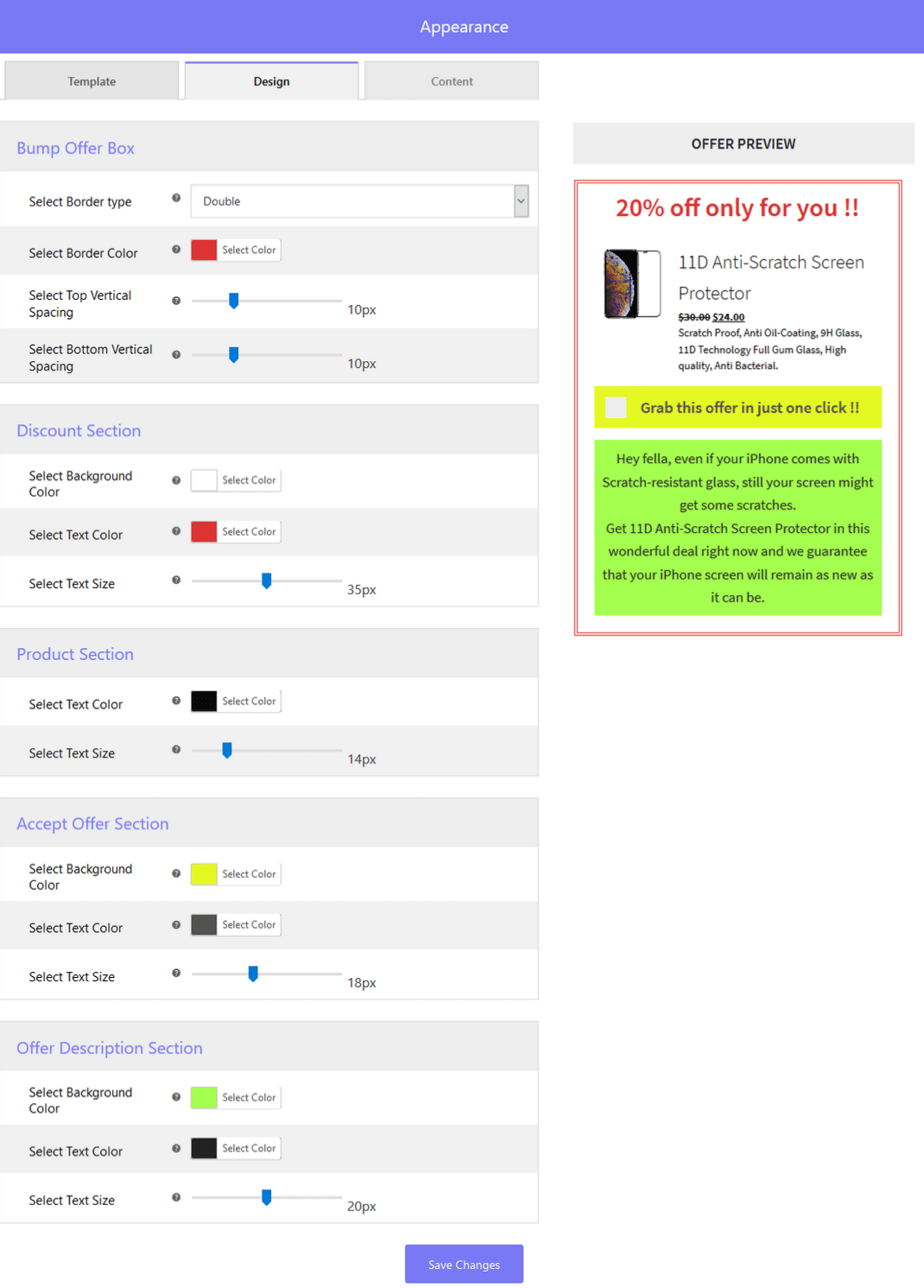
You can choose from three default offer templates in the free version or access 10+ templates if you’re using the premium version. These templates provide a foundation for setting up your cross-sell offers.2. Design Customization:
The plugin allows you to fully customize the design of the cross-sell offers. You can adjust the:
– Bump Offer Box
– Discount Section
– Product Section
– Accept Offer Section
– Offer Description SectionReal-time previews ensure you can see the changes instantly.
3. Content Updates:
You can modify the content of the cross-sell offers to align with your sales goals. Editable fields include:
– Discount Title
– Product Description
– Lead Title
– Offer Description4. Activation and Display:
Once the customization is complete, enable the offer with a toggle button and save the changes.The cross-sell offers will then be live and visible on the cart page, seamlessly integrated into the customer journey.
This makes the plugin highly flexible and user-friendly for tailoring cross-sell products and offers to boost your sales.
January 16, 2025 at 12:29 pm #3701Topic: Cross Selling Products Customization ?
in forum WordPress/WooCommerceZainParticipantUsing the Upsell Order Bump Plugin for WooCommerce, is it possible to customize the cross-sell products and their offers?
January 13, 2025 at 12:25 pm #3667ZainParticipantTo change the Order Bump on the Side Cart Slider of your website using the WooCommerce Upsell Order Bump Offer for WooCommerce plugin, follow these steps:
Steps to Enable Order Bump with Side Cart Slider:
- Install and Activate the Plugin: Ensure you have installed and activated the Upsell Order Bump Offer for the WooCommerce plugin on your website.
- Navigate to WooCommerce > Settings > Order Bump.
- Under the General Settings, you’ll find the option to enable the Side Cart WooCommerce.
Check the box to enable side cart functionality.
Customize the Order Bump Offer:
- Go to Order Bump Offers > Add New Offer.
- While creating the order bump, make sure the product(s) selected as the bump offer align with the user’s cart conditions.
- Ensure the Side Cart Plugin Is Installed.
Confirm that the side cart displays dynamically when items are added to the cart.
Test the Functionality:Add products to the cart on your site and verify that the order bump offer appears on the side cart slider.
January 7, 2025 at 12:53 pm #3665ChristopherParticipantUsing the Upsell Order Bump Plugin, is it possible to show bump offers on the side cart slider?
November 14, 2024 at 10:36 am #3526In reply to: Does WordPress have a free funnel builder?
ChristopherParticipantWordPress offers several options for creating sales funnels for free through various plugins.
Here are some notable free funnel builders available for WordPress:
Upsell Funnel Builder by WP Swings (Free WordPress Funnel Builder) plugin allows merchants to create post-purchase upsell and cross-sell offers seamlessly integrated into WooCommerce checkout and thank you pages. This tool is designed to maximize sales and boost the average order value (AOV) by enabling customers to add upsell products with just one click, without needing to re-enter payment details.
ClickFunnels (Paid Version) is a comprehensive software-as-a-service (SaaS) platform designed to help businesses create effective sales funnels that convert leads into customers. Launched in 2014, it provides a range of tools for building landing pages, managing customer relationships, and automating marketing processes.
There are other plugins too that offer paid versions of WordPress Funnel Builder like FunnelKit, WPFunnels, and more
October 21, 2024 at 9:46 am #3457 DanielParticipant
Hey! If you want to promote an upsell order bump offer listed on your WooCommerce shop, the answer to all questions is – Post-Purchase Coupon!
Utilize this unique WooCommerce order bump feature to reward your customers for their successful bump offer purchases. These discount coupons will be sent to customers via email, which they will mention at the checkout.
Want to understand the workings of this feature? Check out the documentation of the upsell order bump!
October 21, 2024 at 8:04 am #3455 RobertParticipant
Hey! I am looking for new ways to promote the upsell order bump offers on my WooCommerce shop. Can someone help me with this?
September 23, 2024 at 10:56 am #3371DanielParticipantHello Emma,
The Post-Purchase Coupon feature, of the upsell order bump plugin, automatically sends customers a reward after they’ve successfully accepted an order bump offer.
Unlike regular discounts applied at checkout, these personalized coupons are delivered via email, providing an additional incentive for future purchases. This helps boost customer retention by creating a follow-up interaction after the sale.
July 24, 2024 at 12:43 pm #3116 Mary WilliamsParticipant
Of course! The WP Swings Upsell Order Bump plugin allows you to offer consumers an upsell of commonly purchased goods in an efficient manner.
This unique feature, which shows a portion of “frequently bought” goods, elevates your order bump offerings.
You Can go to Product >> Select Frequently Bought Together Settings >> Configure as per your requirements.
July 12, 2024 at 10:52 am #3073ChristopherParticipantYes Zain, you can schedule order bump offers to appear only on specific days using the Upsell Order Bump Offer for WooCommerce Pro plugin.
This feature allows you to set up smart offer scheduling, enabling you to display order bumps on selected weekdays or daily, which can help in making the offers more effective and timely
To set up a schedule for order bump offers using the Upsell Order Bump Offer for WooCommerce Pro plugin,
Follow these steps:
Navigate to the Order Bump List Section: Go to your WordPress dashboard > Order Bump and click on the Order Bump List section.
Create a New Order Bump: Click on the “Create New Order Bump” button in this section.
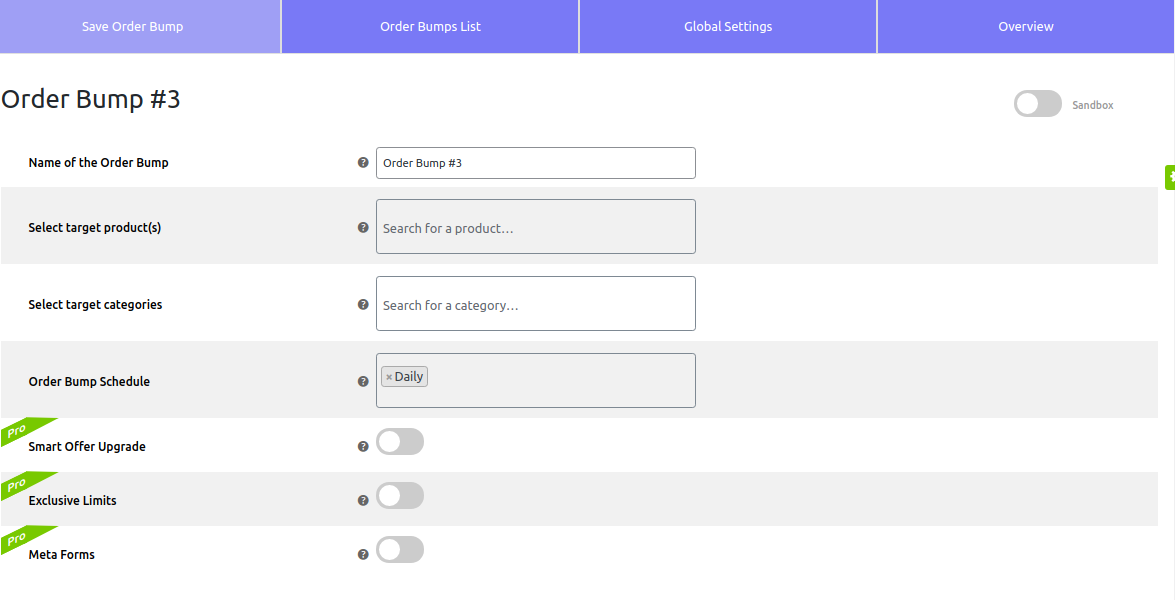
Name your bump offer, select the target product, and target category, and schedule your offer for specific days accordingly.Set the Schedule: In the scheduling section, you can set the order bump to appear on specific days or daily. This feature allows you to schedule your bump offers to align with your business needs, such as for weekdays, weekends, or all days of the week.
Customize the Offer: Add your offer product and discount.
Select the offer template and customize the design and content as you want.
Make the funnel live and save changes.By following these steps, you can schedule your order bump offers to appear at specific times, helping you optimize your sales and conversions effectively.
-
AuthorSearch Results
Search Results for 'order bump'
-
Search Results
-
How to Show WooCommerce Related Products by Category using WooCommerce Upsell Order Bump Plugin?
How to show related products using the cross-sell shortcode and customize the placement of bump offers by the Upsell Order bump Plugin.
Using the Upsell Order Bump Plugin for WooCommerce, is it possible to customize the cross-sell products and their offers?
Using the Upsell Order Bump Plugin, is it possible to show bump offers on the side cart slider?

