
› Forums › WordPress/WooCommerce › How do I display products on posts and pages in WooCommerce?
- This topic has 3 replies, 3 voices, and was last updated 3 years, 7 months ago by
 Bennett.
-
AuthorPosts
-
December 19, 2022 at 1:18 pm #475
 Styles maccalParticipant
What are the simplest and most adaptable methods to show your items on WooCommerce site posts and pages.
December 21, 2022 at 4:59 am #479 Jacob SmithParticipant
Show products on any posts or pages in WooCommerce using Shortcodes
WooCommerce comes with several shortcodes that can be used to insert content or products in any posts or pages.
Shortcode is the primary shortcode that can display products by post ID, SKU, categories, attributes, with support for pagination, random sorting, and product tags. Simply adding it to any page will display all the products from your shop page.
To simply show your products on any posts or pages you just need to add shortcode : [products] as shown below.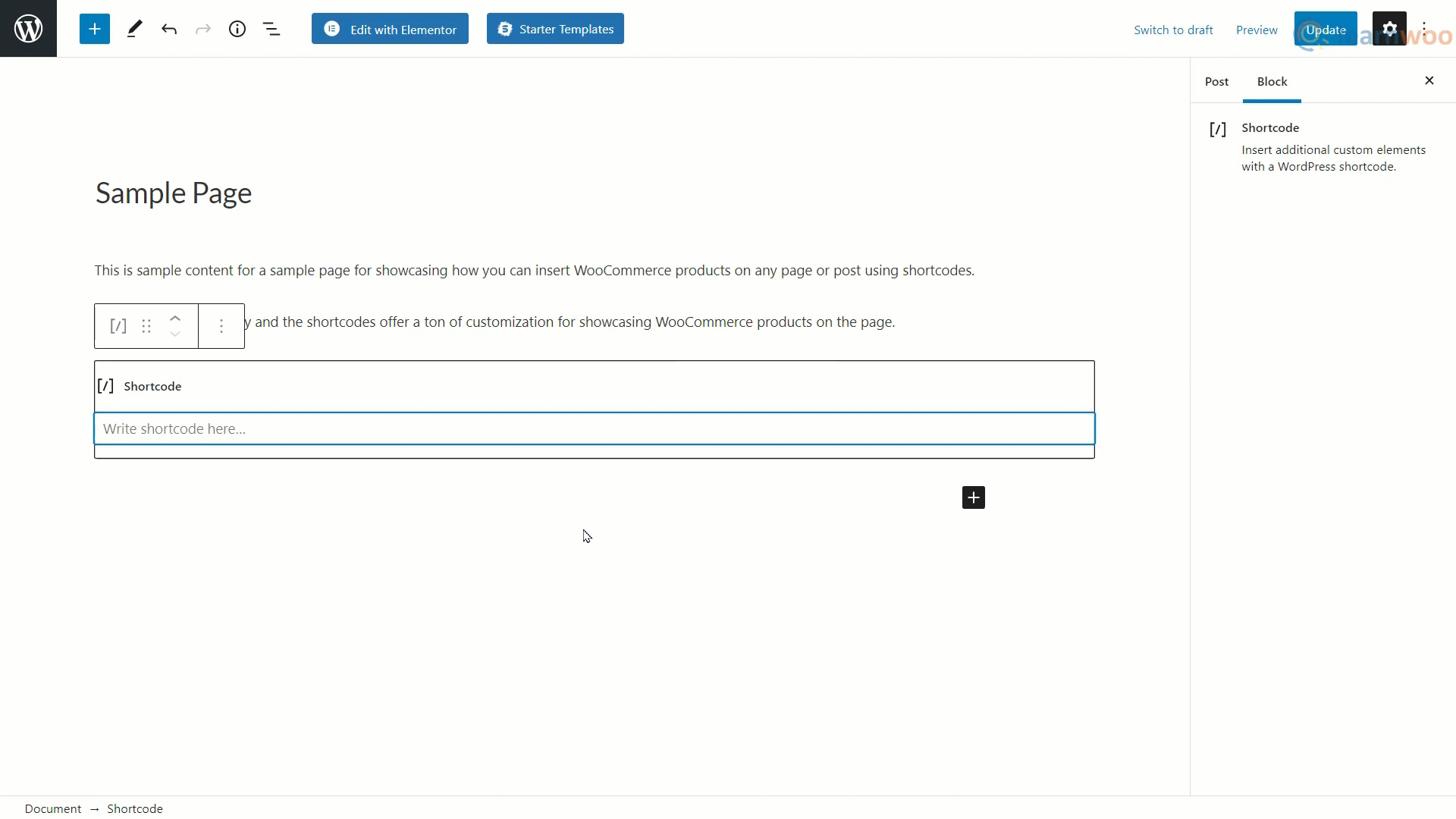
Adding [products] as shortcodes in the same section will show your product on any posts or pages in the frontend.
In situations where you want to show specific products on a page, only being able to show all the products is a huge limitation. So you can use attributes to specify the products you want to showcase. These attributes need to be mentioned along with Arguments or attribute values that give you even more control over the products you want to show on a page. These attributes along with their arguments can simply be appended to the shortcode inside the brackets.
February 1, 2023 at 4:42 am #924Styles maccalParticipantHow do I change the product display in WooCommerce?
February 3, 2023 at 9:13 am #939 BennettParticipant
To make sure your product template has the right design, it is advised that you preview it with several different products.
Click on the eye icon on the bottom left panel, then settings. Under Preview Settings, choose the specific product you want to display. Now, apply and review to see how it looks like.
This is the stage in which you set the conditions that determine where your product template will appear. By default, the template will affect all the product pages on your site. You can also select a specific category of products.
Click on Publish.
-
AuthorPosts
- You must be logged in to reply to this topic.
